Making graphical user interfaces (GUIs) with FAST in Python
Contents
Introduction
FAST uses Qt for making graphical user interfaces (GUIs). If you want to make an advanced GUI with FAST in Python you should use PySide2 along with FAST, see the bottom of this tutorial. However, if you just want to make a simple GUI you can also use the builtin widgets in FAST, which are simple wrappers of some of Qt's widgets and dialogs. A widget is a graphical element for user interaction, such as a button or a window etc. This tutorial will start by showing how to use these widgets in FAST to make simple GUIs quickly.
Popup message
Let's start simple, here is how you can show a simple message in a window on screen using the showMessage() function:
import fast
fast.showMessage('Hello!')
You can also add a title to the message:
import fast
fast.showMessage('Hello!', 'My first message')
File dialog
Here is how you can ask the user to select a single image file using the showFileDialog() function, then open and display the image:
import fast
filename = fast.showFileDialog()
importer = fast.ImageFileImporter(filename)
fast.display2D(importer)
This dialog also supports selecting multiple files, directories, and file for saving which can be configured using the function's arguments.
Button
Buttons can be used to trigger an action when the user presses them by using callback functions. In the example below, a ButtonWidget with the text "Select image" is added to the window. When the user presses the button, the openFile function is called which opens the file dialog, and gives the filename string to the ImageFileImporter. The importer is connected to the ImageRenderer, executed and finally we need to reset the 2D view, i.e. reset the camera of the view using Window::
import fast

# Callback function for when button is pressed
def openFile(x):
    global renderer, window
    filename = fast.showFileDialog()
    if filename:
        importer = fast.ImageFileImporter(filename)
        renderer.connect(importer).run()
        window.resetViews()

openButton = fast.ButtonWidget('Select image', False, fast.ButtonCallback(openFile))
renderer = fast.ImageRenderer()
window = fast.SimpleWindow2D()\
    .connect(renderer)\
    .connect(openButton)
window.run()
Text
Text can be added to the GUI using the TextWidget which uses Qt's QLabel object. This widget supports basic HTML tags for styling such as <h1>, <h2>, <strong> etc. The widget also supports variables in the text using {variable_name}. In the example below we expand on the previous example, by adding a TextWidget to the GUI which shows the filename of the opened file. The TextWidget is placed in top of the GUI, while the ButtonWidget is placed at the bottom by setting the position in the connect() method to fast.WidgetPosition_TOP and fast.WidgetPosition_BOTTOM.
import fast

def openFile(x):
    global renderer, window, title
    filename = fast.showFileDialog()
    if filename:
        title.setVariable('filename', filename)
        importer = fast.ImageFileImporter(filename)
        renderer.connect(importer).run()
        window.resetViews()

title = fast.TextWidget('<h1>Image Viewer</h1>{filename}')
title.setVariable('filename', '')
openButton = fast.ButtonWidget('Select image', False, fast.ButtonCallback(openFile))
renderer = fast.ImageRenderer()
window = fast.SimpleWindow2D()\
    .connect(renderer)\
    .connect(title, fast.WidgetPosition_TOP)\
    .connect(openButton, fast.WidgetPosition_BOTTOM)
window.run()
Slider
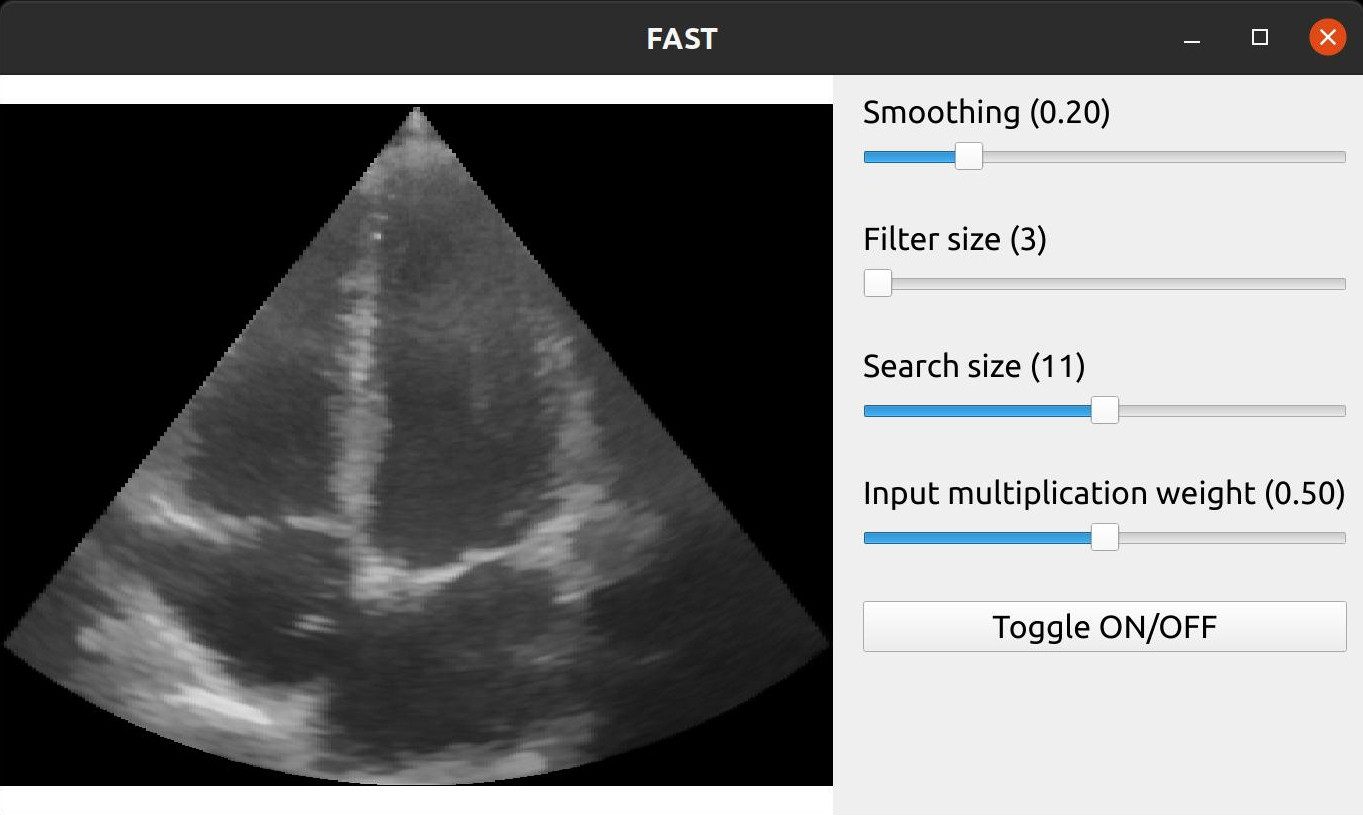
Sliders can be used to set numeric values within a range, for instance to set parameters for some algorithm. Here is an example with SliderWidgets to control the Non Local Means filter, including a button to toggle the filter on and off by disabling the renderer:
import fast

importer = fast.ImageFileImporter(fast.Config.getTestDataPath() + 'US/Heart/ApicalFourChamber/US-2D_0.mhd')

nlm = fast.NonLocalMeans(
        filterSize=3, # Increasing this makes it slower
        searchSize=11, # Increasing this makes it slower
        smoothingAmount=0.2,
        inputMultiplicationWeight=0.5,
).connect(importer)

renderer = fast.ImageRenderer()\
    .connect(importer)

rendererNLM = fast.ImageRenderer()\
    .connect(nlm)

sliderWidget = fast.SliderWidget('Smoothing', 0.2, 0.05, 0.8, 0.05, fast.SliderCallback(lambda x: nlm.setSmoothingAmount(x)))
filterWidget = fast.SliderWidget('Filter size', 3, 3, 19, 2, fast.SliderCallback(lambda x: nlm.setFilterSize(int(x))))
searchWidget = fast.SliderWidget('Search size', 11, 3, 19, 2, fast.SliderCallback(lambda x: nlm.setSearchSize(int(x))))
inputWidget = fast.SliderWidget('Input multiplication weight', 0.5, 0.0, 1.0, 0.05, fast.SliderCallback(lambda x: nlm.setInputMultiplicationWeight(x)))
toggleButton = fast.ButtonWidget('Toggle ON/OFF', True, fast.ButtonCallback(lambda x: rendererNLM.setDisabled(x)))
fast.SimpleWindow2D()\
    .connect(renderer)\
    .connect(rendererNLM)\
    .connect([sliderWidget, filterWidget, searchWidget, inputWidget, toggleButton], fast.WidgetPosition_RIGHT)\
    .run()
Input text
Use the InputTextWidget to enable users to write and provide some text to your program:
import fast
importer = fast.ImageFileImporter(fast.Config.getTestDataPath() + 'US/US-2D.jpg')
input = fast.InputTextWidget()
button = fast.ButtonWidget('Done', False, fast.ButtonCallback(lambda x: fast.showMessage('You wrote: ' + input.getText())))
fast.display2D(importer, widgets=[input, button])
For multiline input text, set singleLine=False in constructor of InputTextWidget:
import fast
importer = fast.ImageFileImporter(fast.Config.getTestDataPath() + 'US/US-2D.jpg')
input = fast.InputTextWidget(singleLine=False)
button = fast.ButtonWidget('Done', False, fast.ButtonCallback(lambda x: fast.showMessage('You wrote: ' + input.getText())))
fast.display2D(importer, widgets=[input, button])
Options
The OptionsWidget can be used to let the user select one of several predefined options in a dropdown button. You can specify a title, and a placeholder text. If the placeholder text is specified, no option is selected initially. If no placeholder text is specified, option 0 is initially selected, unless you set selected=index.
import fast
importer = fast.ImageFileImporter(fast.Config.getTestDataPath() + 'US/US-2D.jpg')
options = fast.OptionsWidget(['Option 1', 'Option 2', 'Option 3'], 'Cool options:', 'Select an option ...', callback=fast.OptionsCallback(lambda i, x: fast.showMessage('You selected: ' + x)))
fast.display2D(importer, widgets=[options])
Table
Tabular data can be displayed using the TableWidget.
import fast

# Make some tabular data
data = [
    ('Column 1', ['1.23', '2.3', '12.3']),
    ('Column 2', ['2.23', '1.3', '13.3']),
    ('Last Column', ['Hello!', '', 'Ok!']),
]

# Make a callback function for when user clicks on a cell in the table
def clickCallback(widget, row, column, doubleClick):
    message = f'You pressed the cell {row},{column}\n'
    message += f'Row {row} contains the following:\n'
    data = widget.getRow(row)
    for key, value in data.items():
        message += f'{key}: {value}\n'
    fast.showMessage(message)

# Setup widget and show it
widget = fast.TableWidget(data, fast.TableCallback(clickCallback))
widget.show(maximized=True)
Playback controls
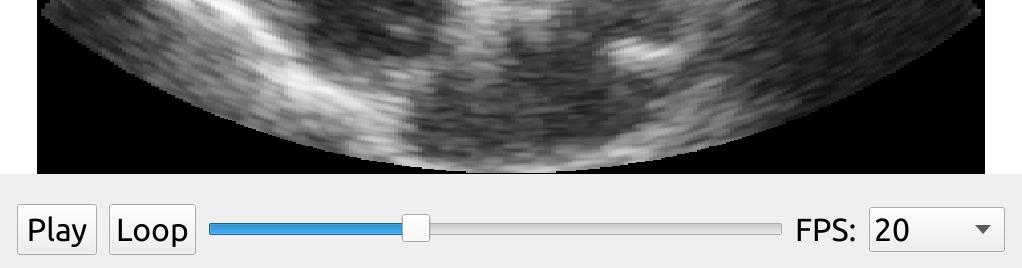
The PlaybackWidget is useful when you want some simple GUI to play/pause/stop, scroll through the frames or change the framerate of a stream of data. Give the RandomAccessStreamer as input to the PlaybackWidget constructor and connect it to your window:
import fast

# Specify path to where the images are stored, use a # to represent the frame index
streamer = fast.ImageFileStreamer(
    fast.Config.getTestDataPath() + 'US/Heart/ApicalFourChamber/US-2D_#.mhd',
    framerate=20, # Specify framerate to stream data in
)

# Create playback widget and use it in the display window
widget = fast.PlaybackWidget(streamer)
fast.display2D(streamer, widgets=[widget])
Styling
You can customize the appearance of your GUI using Qt Style Sheets (QSS) which is a subset of Cascading Style Sheets (CSS).
Here is an example on how to change the appearance of your TextWidget and ButtonWidget:
importer = fast.ImageFileImporter(fast.Config.getTestDataPath() + 'US/US-2D.jpg')
text = fast.TextWidget('Hello!')
button = fast.ButtonWidget('This is a button', True, fast.ButtonCallback(lambda x: print('Button was pressed!')))
window = fast.display2D(image=importer, returnWindow=True, widgets=[text, button], bgcolor=fast.Color.Black())
window.setStyleSheet('''
QWidget {
    background-color: #000000;
    color: #FFFFFF;
}
QLabel {
    background-color: orange;
    color: #000000;
}
QPushButton:checked {
    background-color: green;
}
QPushButton:!checked {
    background-color: red;
}
''')
window.run()
Style sheets can also be saved to file and loaded using Window::window.setStyleSheetFile('path/to/style.css')
Advanced GUIs with PySide2
PySide2 is the python wrapper of Qt 5 and is needed to make advanced GUIs with FAST in Python. For these examples you must use the same Qt version of PySide2 as used in FAST (5.15.2) Do this with: pip install pyside2==5.15.2.1. Note that PySide2 is only available for Python versions up to 3.10.
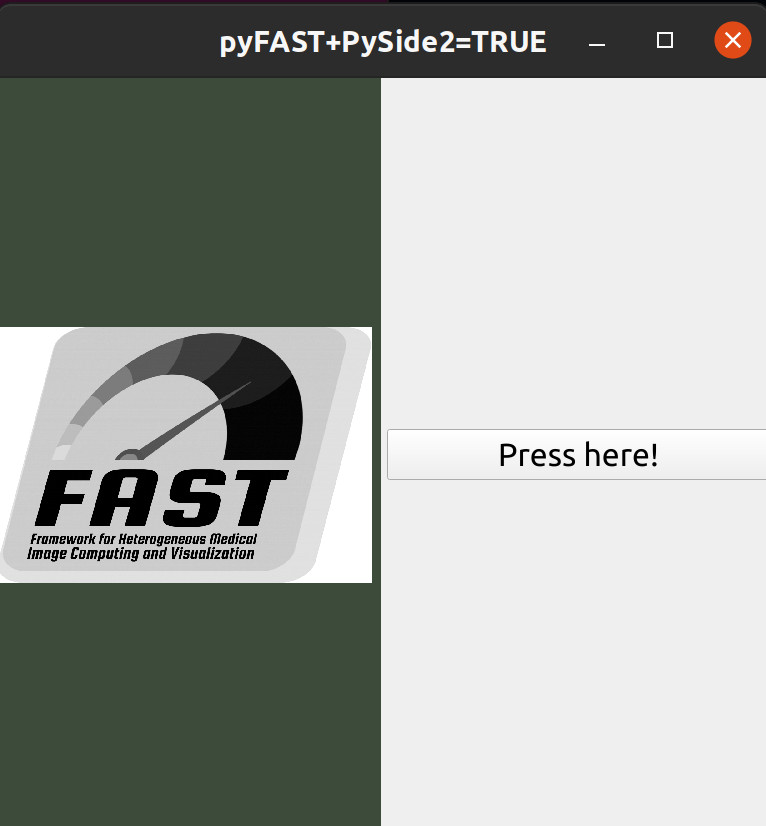
This example shows how to add Qt widgets from PySide2 to a FAST window:
import platform
if platform.system() != 'Windows':
    import PySide2.QtSvg # Must import this before fast due to conflicting symbols
import fast # Must import FAST before rest of pyside2
from PySide2.QtWidgets import *
from shiboken2 import wrapInstance
from random import random

# Setup a FAST pipeline
importer = fast.ImageFileImporter\
    .create(fast.Config.getDocumentationPath() + '/images/FAST_logo_square.png')

renderer = fast.ImageRenderer.create()\
    .connect(importer)

window = fast.SimpleWindow2D.create()\
    .connect(renderer)
window.setTitle('pyFAST+PySide2=TRUE')

# Add Qt button to the FAST window
button = QPushButton("Press here!")
# Convert FAST QWidget pointer to a PySide2 QWidget
mainWidget = wrapInstance(int(window.getWidget()), QWidget)
layout = mainWidget.layout()
layout.addWidget(button)

# Add event: When button is clicked, change background color of the FAST view randomly
button.clicked.connect(lambda: window.getView().setBackgroundColor(fast.Color(random(), random(), random())))

# Run everything!
window.run()
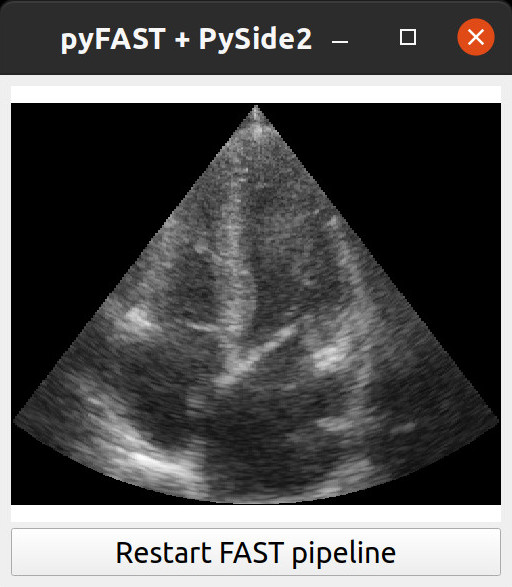
This example shows how FAST can be used with a Qt window (QWidget) from PySide2:
import platform
if platform.system() != 'Windows':
    import PySide2.QtSvg # Must import this before fast due to conflicting symbols
import fast # Must import FAST before rest of pyside2
from PySide2.QtWidgets import *
from PySide2.QtOpenGL import QGLWidget
from PySide2.QtCore import Slot
from shiboken2 import wrapInstance

#fast.Reporter.setGlobalReportMethod(fast.Reporter.COUT)

# Create a simple window widget with pyside2
class Window(QWidget):
    def __init__(self):
        super(Window, self).__init__()
        self.setWindowTitle('pyFAST + PySide2')

        # Create button
        self.button = QPushButton("Restart FAST pipeline")

        # Create FAST view
        self.view = fast.View()
        self.installEventFilter(wrapInstance(int(self.view.asQGLWidget()), QGLWidget))
        self.view.set2DMode()

        # Create layout and add widgets
        layout = QVBoxLayout()
        layout.addWidget(wrapInstance(int(self.view.asQGLWidget()), QGLWidget))
        layout.addWidget(self.button)
        self.setLayout(layout)

        # Connect button click event
        self.button.clicked.connect(self.restartPipeline)

        self.resize(512, 512)

    @Slot()
    def restartPipeline(self):
        # Create FAST computation thread
        # This is needed to run computations smoothly in the background
        # The computation thread must live in the object to avoid being destroyed when this function is done.
        self.computationThread = fast.ComputationThread.create()
        self.computationThread.addView(self.view)

        # Setup a FAST pipeline
        streamer = fast.ImageFileStreamer \
            .create(fast.Config.getTestDataPath() + '/US/Heart/ApicalFourChamber/US-2D_#.mhd', framerate=25)

        renderer = fast.ImageRenderer.create() \
            .connect(streamer)

        self.view.removeAllRenderers()
        self.view.addRenderer(renderer)
        self.view.reinitialize()
        self.computationThread.start()


if __name__ == '__main__':
    # Get the Qt Application
    app = QApplication.instance()

    # Create and show the window
    window = Window()
    window.show()

    # Run the main Qt loop
    app.exec_()
Next steps
You have now finished the Python GUI tutorial.
- See more Python Tutorials.
- Check out some Python Examples.
- Review Concepts & Glossary used in FAST.